How to Search Listings by Category on Admister
Learn how to search listings by category on Admister, narrow results with filters, and review category pages for the best match.
On this page
- What Category Search Is for on Admister
- Open the Listings Directory and Find the Category Filter
- Choose a Main Category and Narrow It Down
- Use Additional Filters After Selecting a Category
- Review the Category Results Page
- Switch Categories When the First Choice Is Too Broad
- Save Time with Category Browsing Tips
What Category Search Is for on Admister
Category search on Admister helps when you already know the kind of listing you want, but not the exact title or wording. A search for “chair” can miss a seller who wrote “dining seat,” yet the category path still finds it. That matters fast.
This approach is useful for buyers who want to scan several similar listings side by side, and for people who need to compare services before contacting anyone. If you are wondering about how admister works, the short version is simple: the site lets you browse by structure as well as by text. One path is not better every time.
There is also a practical reason to browse by category: you can spot gaps. If a category has only 3 listings, it may be too narrow for your needs. If it has 300, you may need one more filter. Keep that number in mind.
The phrase “how to search listings by category on Admister” sounds technical, but the task itself is plain. Pick a category. Read the results. Adjust once. Done.
Open the Listings Directory and Find the Category Filter
Start from the main listings directory, not from account settings or posting tools. That distinction saves time, because the listing browser and the listing editor are different parts of the site. One is for looking; the other is for managing.
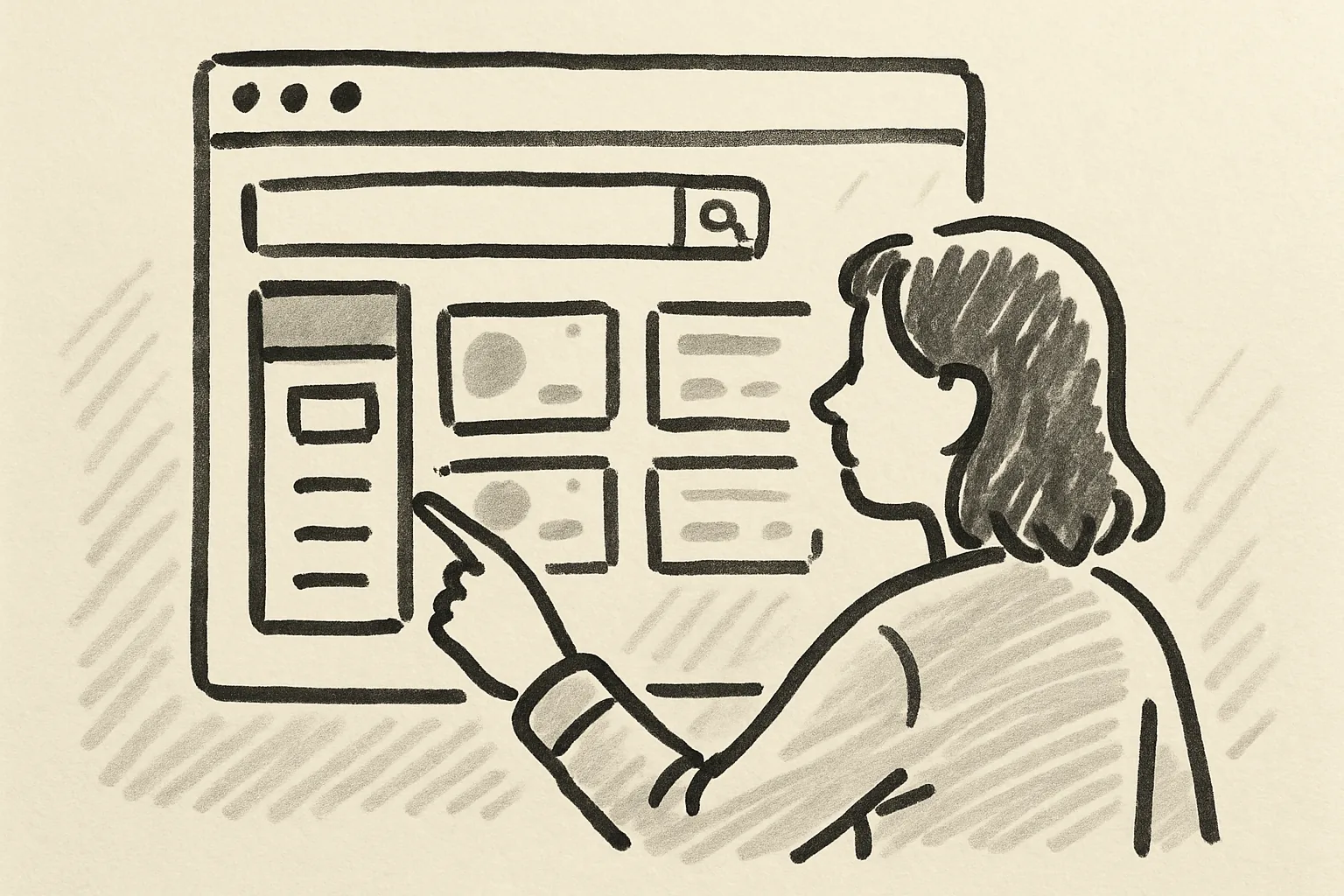
Once the directory opens, look for the category filter near the top of the page or along the left side, depending on the layout you see that day. On some screens it may appear as a menu with a single category label. On others, it may unfold into a stack of choices. Either way, the first move is the same: open the category control before typing anything.
If you arrived from a page about buying on admister, you may already be close to the right browsing view. That saves a click or two. Small win.
Do not confuse the category filter with a search box. A search box asks for words. The category filter asks for structure. That difference matters when the listing titles are vague, oddly phrased, or written in a seller’s shorthand.
Choose a Main Category and Narrow It Down
Begin with the broadest sensible category. If you are looking for electronics, start there rather than guessing at a brand name. If you need services, start with the services group rather than trying to force the search through a product category. The first choice sets the path.
From there, move down one level at a time. A broad category like “Home” usually contains smaller branches such as furniture, appliances, or décor. That step-by-step narrowing is the cleanest way to avoid mixed results. It also keeps you from missing listings that were filed properly but labeled generically.
One useful habit is to read each category label before clicking. A subcategory can sound close enough and still be wrong. “Office chairs” and “chairs” are not the same thing. Neither are “repairs” and “installation.”
If you want to understand the broader browsing flow, the the 7 admister services page shows how the site organizes different kinds of activity. That overview can help you pick the right branch the first time. A minute here can prevent five minutes later.
Do not rush the first branch. A bad first click can bury relevant results under a pile of unrelated ones, and then you spend the next several screens undoing your own choice. That happens often enough to be annoying, but it is easy to avoid.
Use Additional Filters After Selecting a Category
After you choose a category, look for extra filters such as location, price range, condition, or date. These filters usually appear only after the category path has been set, because the site needs context before it can trim the results correctly. One filter without a category can be too blunt.
Location is often the first filter to use. A listing 2 cities away may be fine for a digital service, but not for a bulky item you need to pick up. Condition matters next: new, used, refurbished, or unspecified can change what counts as a good result. Date matters too, especially if you want newer listings and do not want to sort through stale posts from last month. Time matters.
Price range helps when the category is crowded. A search for a basic phone accessory may return too many results until you set a ceiling. A lower limit can also be useful if you want to avoid bargain-bin noise. Both sides count.
If you are unsure about basic safety while filtering and contacting sellers, read staying safe as a buyer. It gives a useful context before you message anyone. That is not extra caution; it is normal caution.
One short rule helps here: add only the filters that answer a real question. If a filter does not change your decision, skip it. Too many filters can hide the very listing you want.
Review the Category Results Page
Once the results load, read the page as a list of clues, not as a final answer. The top entries may be newest, most relevant, or sorted another way. Check the labels, the category tags, and the short descriptions before opening every listing. You do not need every click.
Look at how many results appear. If you get 9 listings, the category might be too narrow. If you get 900, it is probably too wide. Those two numbers tell you something useful before you spend another minute browsing.
Watch for repeated wording in the results. When 12 listings all use the same phrase, it may mean the category is active and standardized. When the wording varies wildly, the category may be mixed, or some sellers may have filed items in a loose way. That is not rare.
If a listing opens with little detail, compare it against two others in the same category. The point is not to chase the longest description. The point is to find the best fit. Sometimes the shortest listing is the clearest one, and that is enough.
One practical detail: if the page gives sorting controls, check them before you scroll too far. A single sort change can move a useful listing from page 3 to page 1. That saves your fingers and your patience.
Switch Categories When the First Choice Is Too Broad
Sometimes the first category is simply wrong. Maybe you searched “home” and found furniture, décor, and spare parts all in one pile. Back up one level and try a different branch. That is not failure; it is the normal way category browsing works.
If a category is too broad, the fix is usually one step deeper. If it is too narrow, move sideways to a neighboring branch. For example, a service might sit under “repairs” rather than “installation,” or an item might belong under “audio” instead of “electronics.” The names can be close and still point to different sets of listings.
Do not start over from scratch unless you have to. Most category trees let you switch branches without losing the whole page. That means you can compare 2 paths quickly and keep the better one. A small backtrack is cheaper than a full restart.
This is also where a support page can help if the site’s layout has changed. If something looks unfamiliar, check admister for the current help route. One link is enough when a control has moved.
There is a useful habit here: after 2 failed branches, pause and re-check the wording of the category names. The mistake is often not your search idea. It is the label.
Save Time with Category Browsing Tips
Repeat searches get easier after the first 3 or 4 tries. Keep a note of the category path that worked best last time, especially if you search for the same type of listing every week. A saved path is faster than rediscovering it from memory, and memory is sloppy on busy days.
Use nearby categories when one branch is quiet. A search for bicycles may also benefit from checking accessories or repair listings, depending on what you need. Nearby does not mean identical, but it often means relevant enough to check.
Compare similar listings without leaving the category page if the site lets you open items in a new tab. That keeps your place in the list. It also lets you compare 2 listings with fewer clicks, which is handy when prices or conditions are close. Close calls deserve side-by-side reading.
Be careful not to mix browsing with account tasks. If you need help with profile changes or policy questions later, the frequently asked questions page is a better place to start than the category browser. One page is for search, another is for answers.
Another time-saver is to stop after the first 10 listings if the category is clearly wrong. Do not read 40 bad matches hoping for a miracle. That is how an easy search becomes a long one.
When you find a category that works, keep the exact order in mind: main category, subcategory, filters, results, review. That 5-step rhythm makes the next search quicker. It also keeps you from clicking in circles.