How to Edit a Listing on Admister After Publishing
Learn how to edit a listing on Admister after publishing without breaking the live page, triggering review, or losing visibility.
On this page
- How to Edit a Listing on Admister After Publishing
- 1. Confirm that the listing is already live and find the right edit path
- 2. Check what kind of changes are still allowed after publication
- 3. Review the listing for changes that may trigger moderation or reposting
- 4. Make the edits without breaking the live listing
- 5. Save the update and verify the published version
- 6. Handle cases where the edit option is missing or restricted
- 7. Decide when a correction should become a replacement instead of an edit
How to Edit a Listing on Admister After Publishing
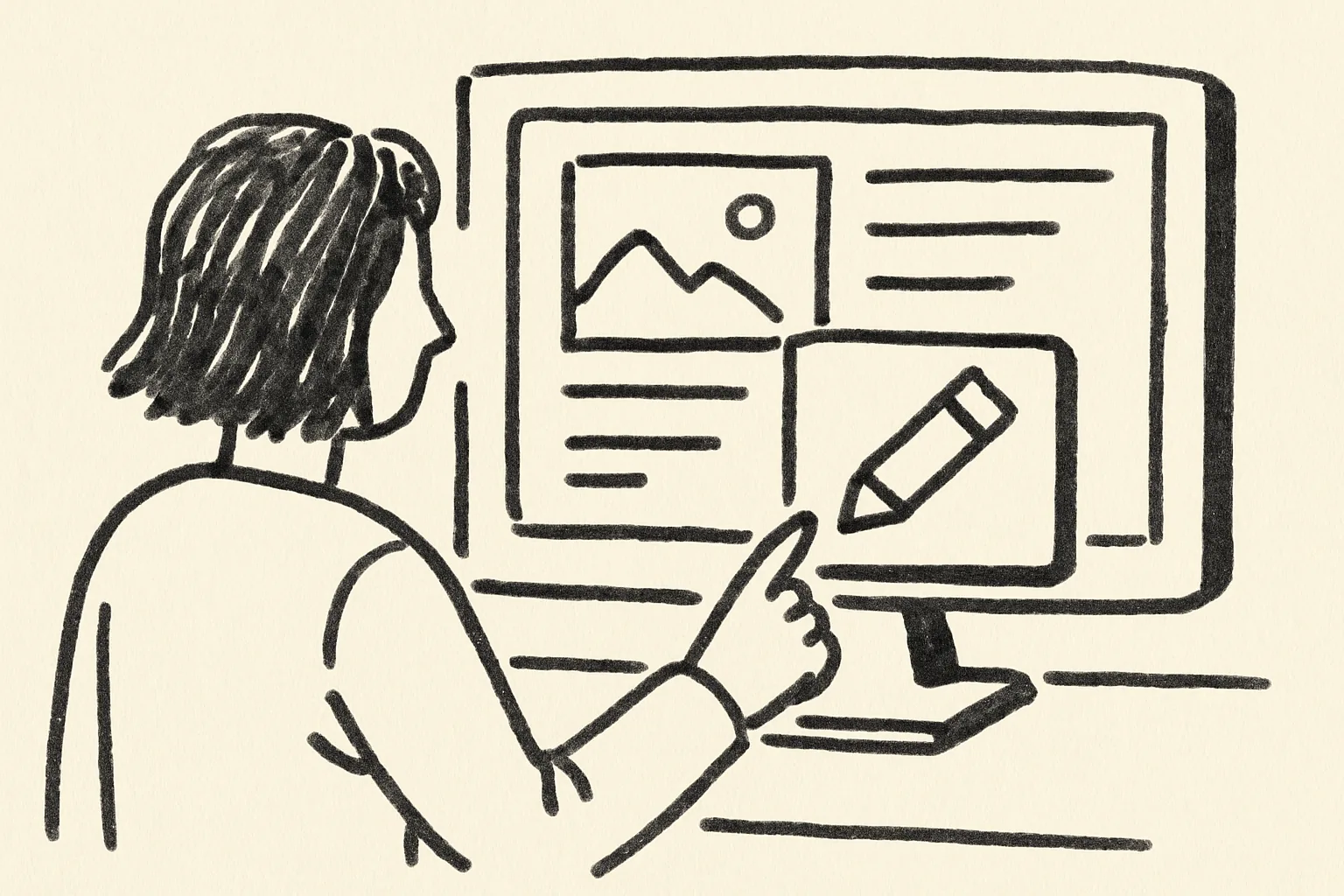
Editing a live listing is not the same as creating one. The page is already public, people may already have seen it, and one small change can affect approval, ranking, or visibility. If you are trying to understand how to edit a listing on Admister after publishing, start with the account area you used to post it and look for the exact listing you want, not a draft or an older copy.
That sounds obvious, but it is the point where people slip. One seller edits the wrong item. Another changes a published listing and then cannot find the version buyers are seeing. Slow down for 30 seconds and match the title, date, and category before you touch anything.
1. Confirm that the listing is already live and find the right edit path
First, make sure the listing is actually published. A saved draft, a pending submission, and a live listing can sit close together in a dashboard, and the controls may differ for each state. If Admister shows a status label, use that label before you look for an edit button. If the status says live, active, or published, you are in the right place.
Look for a management path that fits the listing state. On some screens it may say Edit. On others it may say Manage, Open, Renew, or View listing. That label matters, because the post-publish route can lead to a page where only certain fields are open for changes. If you cannot tell which path is active, check how admister works for the account flow that usually leads to listing tools.
Use the listing title and posting date as your anchor. A seller with three similar listings can easily click the wrong one, especially if two items share the same category. A published listing for a sofa is not the same as the draft for the chair beside it. One click can change the wrong ad.
2. Check what kind of changes are still allowed after publication
After publication, not every field stays open. Commonly editable items may include text corrections, price changes, photos, phone numbers, and status fields such as availability or sold markers. Some platforms also allow small location edits or description updates, while others block them once the listing is live. Read the available form fields before you assume anything.
Text fixes are usually the safest. A missing letter in the title, a bad street name, or a sentence that confuses buyers can often be corrected without rebuilding the whole listing. Photo changes are a little more delicate, because they can alter the listing’s first impression. If your phone number changed, check checking a phone number before you save a new contact detail.
Some fields should be treated carefully. Category, service type, and audience settings can decide how the listing appears and who can see it. Changing them after publishing may move the listing into another review flow or make it look inconsistent with the rest of the page. Keep the change list short. One correction is better than five guesses.
3. Review the listing for changes that may trigger moderation or reposting
Before you save anything, ask a simple question: will this edit stay inside the live listing, or will it force a new review? That question matters because some systems treat major changes as a new submission. A new price can be harmless. A new category or a completely rewritten title may not be.
Moderation triggers are often tied to content, not intention. If you replace most of the description, add new images, or shift the listing toward a different product, the platform may recheck the page or hide it briefly while review happens. The result is not always a problem, but it can surprise someone who expected an instant update. A hidden listing is still a consequence.
Here is the practical rule: the bigger the change, the bigger the chance of a delay. A typo fix is one thing. Turning a “used desk” listing into a “new office package” is another. If you need help with policy-sensitive edits, check the frequently asked questions page before you hit save.
4. Make the edits without breaking the live listing
Edit only the field you mean to change. Leave the rest alone. That sounds almost too plain, but it prevents accidental updates to title, category, or visibility settings. If the form opens with prefilled information, read each box before typing. A single extra keystroke in the title can change search behavior, and that is not a small thing.
Work from the smallest change outward. Start with the correction, then check the preview if Admister shows one. If you are updating photos, replace only the image that needs replacement unless the listing clearly requires a full refresh. If you are changing text, keep the format tight and consistent so the live listing does not end up with odd spacing or broken line breaks.
Do not rush through radio buttons, dropdowns, or checkboxes. Those controls are where mistakes hide. A seller may mean to update the description and accidentally switch a delivery option, which then changes buyer expectations. That kind of error causes messages, complaints, and another round of edits. One small checkbox can create three extra messages.
If the listing includes service details, make each change match the service description exactly. For broader help around listing structure and service categories, the the 7 admister services page can help you compare what belongs where. Keep the live listing aligned with the service you actually offer.
5. Save the update and verify the published version
Saving is not the finish line. After you save, open the published listing as a viewer would see it and confirm the new content is there. Check the title, the first paragraph, the images, and any contact field that was edited. If the system shows a timestamp or “last updated” note, read it. That detail tells you the edit actually went through.
Look for formatting problems too. A description can save correctly and still display with broken paragraphs, duplicated text, or a missing photo caption. If the listing includes a price or status label, make sure the live version shows the same information you entered. One mismatch is enough to confuse a buyer who compares the page with a message thread.
Use a second device if you can. A desktop preview and a phone view can show different spacing, especially after text edits. This is a good moment to check the listing in a real browser, not only in the editor. If the update matters to a buyer, verify it the way a buyer will see it. If you are unsure about buyer-facing details, the guide on staying safe as a buyer shows what details people tend to inspect first.
6. Handle cases where the edit option is missing or restricted
Sometimes the edit button is not there. Sometimes it is there, but greyed out. That usually means the listing is under review, locked by policy, tied to a completed process, or limited to certain account roles. Do not keep clicking the same control for five minutes. Read the status first.
If direct editing is unavailable, look for a support path. The account may allow a correction request, or the platform may require you to wait until approval finishes. In other cases, the only clean fix is to create a corrected version and let the old live listing remain until you know what rules apply. If you need a human response, contact admister with the listing link and the exact change you wanted.
Missing controls are not always a problem with your account. They can be part of the listing type itself. Some published items are locked after a certain step, and some categories allow edits only in a narrow window. That is annoying, but it is common. The best move is to identify the restriction before you assume the site is broken.
If the issue seems technical rather than policy-based, refresh the page, sign out and back in once, and try a different browser. One browser cache can make a live listing look unchanged when the update already went through. That happens more than people admit.
7. Decide when a correction should become a replacement instead of an edit
Not every mistake should be edited in place. If the wrong item was published, the wrong price was posted, or the entire description points to a different version of the offer, a replacement may be cleaner than a small correction. This is where the phrase how to edit a listing on Admister after publishing stops being the whole question. Sometimes the real question is whether the original listing should stay public at all.
Minor corrections fit edits. A typo, a new photo, or a corrected contact detail usually belongs inside the existing listing. Major changes are different. If the item itself changed, the audience changed, or the listing would now promise something else, a replacement is often the more honest route. That avoids confusing buyers who already read the first version.
Think in terms of consequences. An edited listing can keep its history and current visibility. A replacement can reset how the offer is presented, which may affect response timing and review status. If the posted version is wrong in a way that could mislead buyers, do not try to patch it with four tiny edits. Fix the listing in the form that best matches the real offer.
There is one practical test: would a buyer who saw the first version still recognize the same offer after the edit? If the answer is no, replacement is safer. If the answer is yes, edit the live listing and verify it once more after saving. That last check takes 2 minutes and can spare you a long message thread later.