How to Check a Used iPhone Before Buying
Learn how to check a used iPhone before buying with a simple checklist for battery, locks, damage, and core features.
On this page
- How to Check a Used iPhone Before Buying
- What to Do Before You Meet the Seller
- Used iPhone Buying Checklist: Quick First Pass
- Verify the iPhone’s Identity, Activation Lock, and iCloud Status
- Test the Hardware and Core Features
- Display and touch response
- Face ID or Touch ID
- Cameras, flash, and microphone
- Speakers and ringer
- Charging, Wi‑Fi, Bluetooth, and cellular signal
- Check Battery Health, Storage, and Software Condition
- Look for Damage, Repairs, and Water Exposure
- Final Decision, Price Negotiation, and Safe Purchase Steps
How to Check a Used iPhone Before Buying
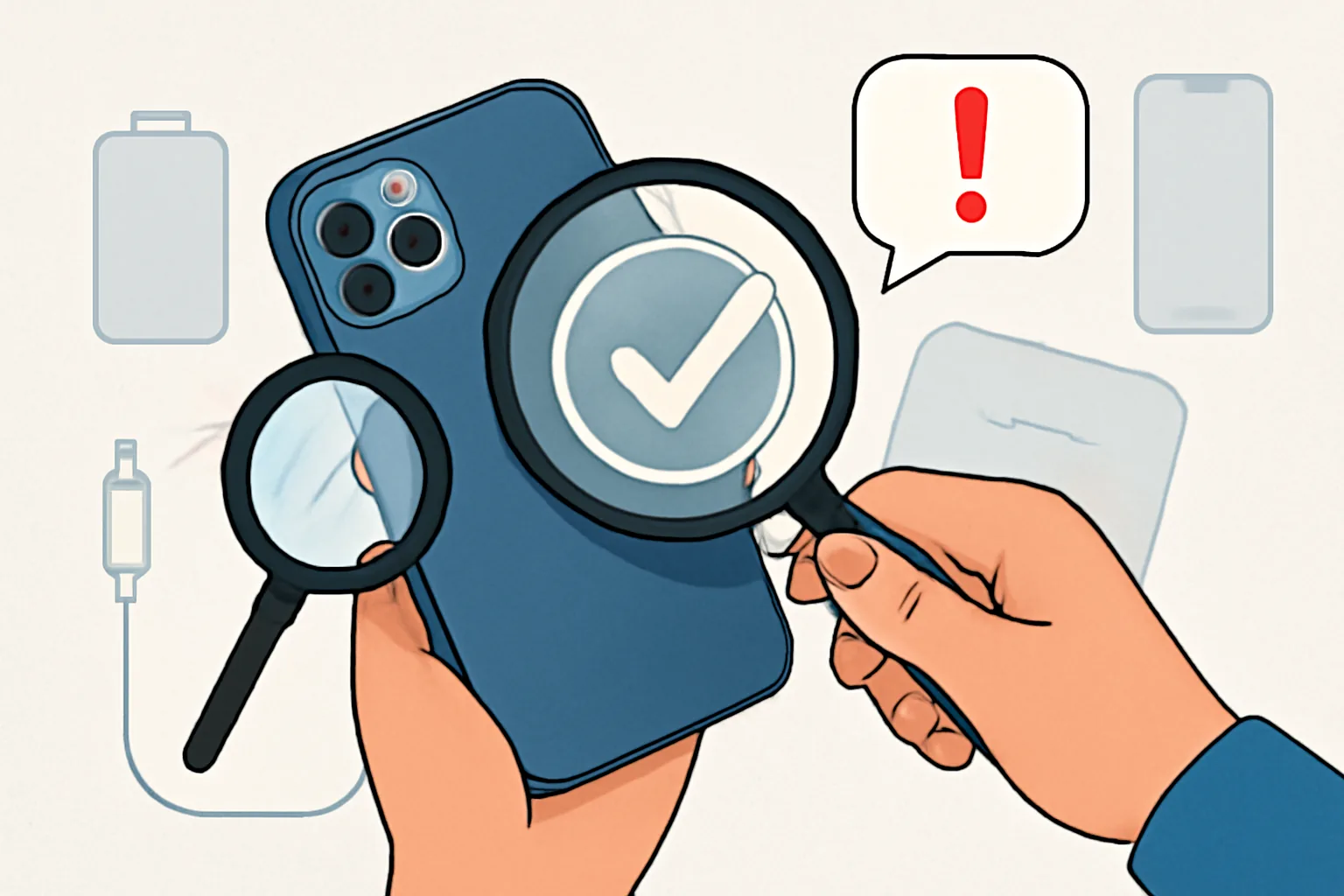
Buying a used iPhone can be a sensible way to save money, but only if you slow down long enough to inspect the device properly. A clean-looking phone is not always a healthy one. Battery problems, hidden water damage, carrier locks, and activation issues can turn a promising deal into an expensive headache. The good news is that most of these risks are easy to spot if you know what to look for.
This guide walks through a practical used iPhone buying checklist you can use in person, whether you are meeting a private seller, buying from a marketplace listing, or checking a handset at a local shop. The idea is simple: spend a few minutes on the right checks now, and you avoid a lot of regret later. If you have ever wondered how to inspect a second-hand phone, the steps below will help you do it with confidence.
What to Do Before You Meet the Seller
The inspection starts before you ever touch the phone. First, confirm the exact model the seller is offering. An iPhone 13 mini and an iPhone 13 may sound similar in a chat message, but they are different devices with different battery life, screen sizes, and resale values. If you care about camera quality, storage, or a compact body, decide that in advance. Otherwise you may end up compromising on a feature that matters more than you expected.
Ask a few direct questions before arranging a meeting:
- Is the phone fully paid off and free of carrier lock?
- Has it ever been repaired, opened, or replaced with non-original parts?
- What is the battery health percentage?
- What storage size does it have?
- Is the seller the original owner, and can they sign out of Apple ID in front of you?
- What accessories are included, such as charger, cable, box, or receipt?
That last point matters more than people think. A box and matching receipt are not proof of perfection, but they can help confirm the phone’s story. If the seller has a clear reason for selling and answers your questions without hedging, that is usually a good sign. If the responses are vague or defensive, take note.
It also helps to bring a short checklist with you. You do not need a printed manual, just a few essentials: a way to take notes, a cable if you want to test charging, and some patience. A rushed purchase is where mistakes creep in. If you want a broader sense of how Admister organizes support and guidance, the How Admister works page is a useful place to start.
Used iPhone Buying Checklist: Quick First Pass
Once you have the phone in hand, do a quick first pass before opening settings or running deeper tests. In the first minute or two, you can usually spot the biggest warning signs.
Check the body. Look at the frame, back glass, and corners. Small scuffs are normal on a used iPhone; deep dents, bends, or cracks are not. Pay particular attention to the corners, since drops tend to land there first.
Inspect the screen. Switch the display to a white background, then a black one if possible. Cracks, ghosting, dead pixels, discoloration, and bright spots are easier to see that way.
Press the buttons. The power button and volume buttons should click cleanly and respond consistently. A sticky button can point to liquid exposure or an internal repair issue.
Check the ports. Look inside the charging port and speaker grilles. Heavy lint is common, but corrosion, bent contacts, or green residue are red flags.
Look at the cameras. Inspect the lens glass for scratches or cracks, then open the camera app and check that all lenses switch correctly.
Listen to the speakers. Play a short video or voice note. Distortion, tinny sound, or one side being much quieter than the other can point to damage.
If the phone has obvious physical damage, do not stop there. A cracked back glass or bent frame may still mean the device works, but it should affect your price and your confidence. A second-hand phone can look tidy from a distance while hiding problems up close. A quick first pass is meant to keep you from wasting time on a device that is already showing major wear.
Verify the iPhone’s Identity, Activation Lock, and iCloud Status
This is the part many buyers skip, and it is the part that can save you from buying an unusable phone. The first step is to verify the phone’s identity. Check the IMEI or serial number in Settings and compare it with the information on the SIM tray, the box, or the seller’s listing if those details are available. Matching numbers are not a guarantee of legitimacy, but mismatches deserve attention.
Next, confirm that Activation Lock is off. If the seller has not signed out of their Apple ID properly, you may not be able to use the phone after purchase. Ask the seller to go to Settings, then Apple ID, and sign out in front of you. After that, the phone should be erased and restarted so you can see whether it sets up normally.
Do not accept “I can remove it later” as a substitute for doing it now. If the seller says they forgot the password, lost access to the account, or need to contact someone else, walk away. A phone that is still tied to another Apple ID is not a clean purchase.
You should also make sure the device can be reset without issue. A proper reset should allow the setup process to begin normally, without prompts for the previous owner’s credentials. If you want to know how support resources are presented on the site, see the Frequently asked questions page for a general example of structured help content.
Test the Hardware and Core Features
Now it is time to make the phone actually work for you. A used iPhone may appear fine in a listing and still fail on something basic like Face ID, charging, or cellular reception. The safest approach is to test core functions one by one.
Display and touch response
Open the home screen and swipe through pages, menus, and the keyboard. The touch response should feel even across the entire screen. If a section ignores taps, jumps unexpectedly, or delays input, the digitizer may be damaged. Also check brightness. The screen should brighten and dim smoothly without flickering or strange color shifts.
Face ID or Touch ID
If the model uses Face ID, set it up if the seller allows it. If Face ID cannot be enrolled, that is a problem, even if the seller says it is “probably just a setting.” On Touch ID models, add a fingerprint and test it several times. Biometric problems are often repair-related, and they can be annoying to fix later.
Cameras, flash, and microphone
Open the camera app and test the front and rear cameras. Switch between lenses, take photos in good light, then record a short video. Check whether autofocus is sharp and whether the flash fires correctly. After that, record a voice memo or use the camera video to test the microphone. If speech sounds muffled or distant, the mic may be blocked, damaged, or replaced badly.
Speakers and ringer
Play audio at a moderate and then higher volume. Both the earpiece and the bottom speaker should work cleanly. A rattling sound, cracking, or uneven volume often means dust, water, or internal damage. Test the vibration or haptic response too, because it is easy to overlook and irritating to discover later that the alerts feel weak or unresponsive.
Charging, Wi‑Fi, Bluetooth, and cellular signal
Plug in the phone and confirm that it charges without wobbling or disconnecting. If you can, move the cable slightly to see whether the port is loose. Then connect to Wi‑Fi and pair a Bluetooth device, such as earbuds or a car system. Finally, check cellular reception with a SIM card if the seller allows it. These are ordinary functions, but they are the ones you rely on daily.
For help checking the phone number itself, if you are verifying a line connected to the device, the Checking a phone number guide may be relevant. It is not an iPhone-specific test, but it can support a broader identity check when the seller provides a number tied to the listing.
Check Battery Health, Storage, and Software Condition
Battery condition is one of the most important reasons to inspect a used iPhone carefully. Go to Settings, then Battery, then Battery Health and Charging, and review the maximum capacity and any service messages. A phone with weak battery health may still look attractive on paper, but if it dies halfway through the day, the bargain disappears quickly.
Pay attention not only to the percentage, but also to behavior. Does the battery drop suddenly from one number to another? Does the device shut down under moderate use? Does it overheat while charging? Those signs can point to deeper battery wear or poor repair work.
Storage matters as well. Check the available capacity in Settings, then General, then iPhone Storage. If the phone is nearly full, you may spend your first week deleting apps and photos just to make it usable. That is not a deal-breaker by itself, but it should factor into the price.
Software condition deserves a look too. Confirm the iOS version and whether updates are available. A phone that is far behind on updates may have been neglected, and one with odd behavior, broken system menus, or unusual app permissions can be a sign of tampering. Jailbroken devices are not always bad, but they can be less stable, harder to support, and more difficult to restore cleanly. If anything about the software feels off, ask more questions before you buy.
Look for Damage, Repairs, and Water Exposure
Some of the most serious problems are invisible at first glance. A used iPhone may have replaced parts, hidden liquid exposure, or a repair history that was never mentioned in the listing. That is why a careful inspection of the seams and internal clues matters.
Look closely at the frame where the screen meets the body. Gaps, uneven edges, or loose panels can suggest the phone has been opened. Inspect the screws, especially near the charging port and pentalobe points, for mismatched heads or wear that does not match the rest of the device. Non-original screws or sloppy installation can indicate a rushed repair.
Check the back glass and camera module for alignment. If the lens sits oddly or the rear housing seems slightly off, something may not have been assembled correctly. These details are easy to miss if you only glance at the phone from a distance.
Water exposure is another issue that can linger. Some phones survive a splash and keep working for a while before corrosion begins to show. Watch for fogging under the camera glass, corrosion around the charging port, or speaker distortion that seems to appear and disappear. If the seller admits to liquid damage, treat that as a serious warning even if the phone seems fine during a short demo.
Any sign of repair or exposure should be weighed against the price and the risk. A repaired device can still be a reasonable buy if the work was done well and the cost reflects it. But if the seller is hiding repairs or downplaying damage, that is a different matter. If you are also interested in avoiding dubious listings more generally, the advice in how to avoid classified ads pickup is worth reading. The same instincts apply here: verify first, trust later.
Final Decision, Price Negotiation, and Safe Purchase Steps
At the end of the inspection, step back and decide whether the phone is truly worth the asking price. A used iPhone with a clean body but poor battery health may still make sense if the seller is honest and the price reflects the compromise. A phone with a perfect battery but Activation Lock problems is not worth buying at any discount. Context matters, but some issues are simply too risky.
Negotiation works best when it is specific. Instead of saying the phone is “too expensive,” mention the exact issues you found: a weak battery, a damaged corner, missing accessories, or a scratched camera lens. Sellers are often more reasonable when you show them you have checked the device properly. There is no need for drama. Clear observations usually work better than bargaining theater.
When you are ready to buy, complete the transaction safely. Make sure the IMEI matches what you recorded. Ask for a simple proof of sale or written note that identifies the device, the seller, the date, and any agreed condition of the phone. If possible, keep a screenshot of the listing and any messages about condition, accessories, or return expectations.
If the phone is being handed over in person, do not rush the final step. Watch the seller sign out, erase the device, and leave it ready for setup. Then power it on yourself and confirm it reaches the setup screen without asking for the previous owner’s Apple ID. That small pause can save a lot of trouble. Once money changes hands, your leverage disappears fast.
Buying used can be perfectly sensible. Plenty of iPhones have years of useful life left in them. The trick is not to hope for the best, but to inspect like someone who has seen a few bad ones before. If you follow a structured used iPhone buying checklist, verify the identity and account status, and test the hardware with calm persistence, you give yourself a much better chance of walking away with a solid phone instead of a problem disguised as a bargain.